

How do you collect candidacies and lists online for an election
With Camelot's candidacy collection, an organization collects candidacies, lists and endorsements online for a body to be elected, before the vote. It is set up in six steps from the Studio. Candidates enter with a personal link, without creating an account, and the Electoral Committee validates and confirms the list.
Candidacy collection is available with the licences that include it or on request.
Video chapters
- 0:00Introduction and where you start
- 0:11Step 1, body and access
- 0:41Step 2, path and phases
- 0:57Step 3, the candidacy
- 1:24Step 4, endorsements
- 1:36Step 5, Electoral Committee
- 1:58Step 6, summary and creation
- 2:10Management panel, lists
- 2:22Invitations and publication
- 2:40Public page and invitation to candidates
- 2:56Applications, confirmation and availability
Step by step
- 1
Where you start
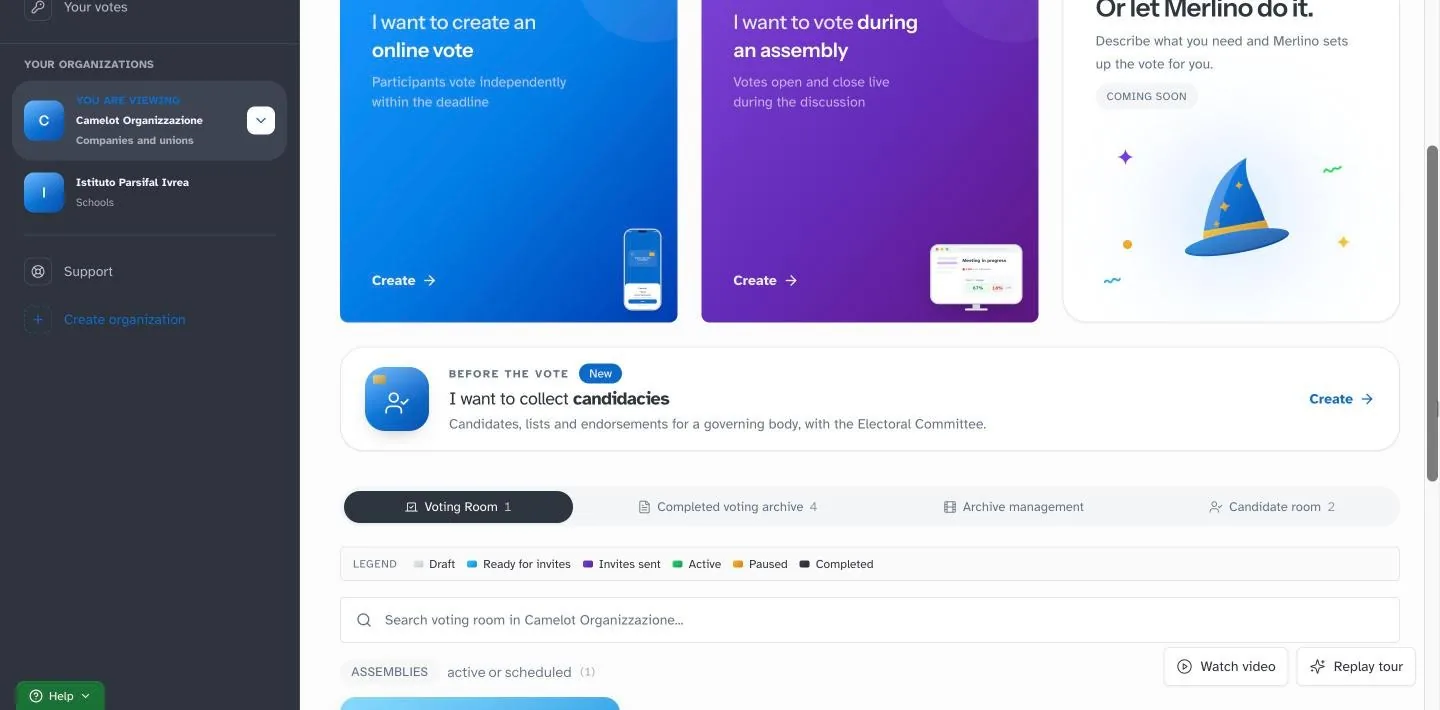
From the organization's dashboard you open the card “I want to collect candidacies” and press Create.
- 2
Body and access
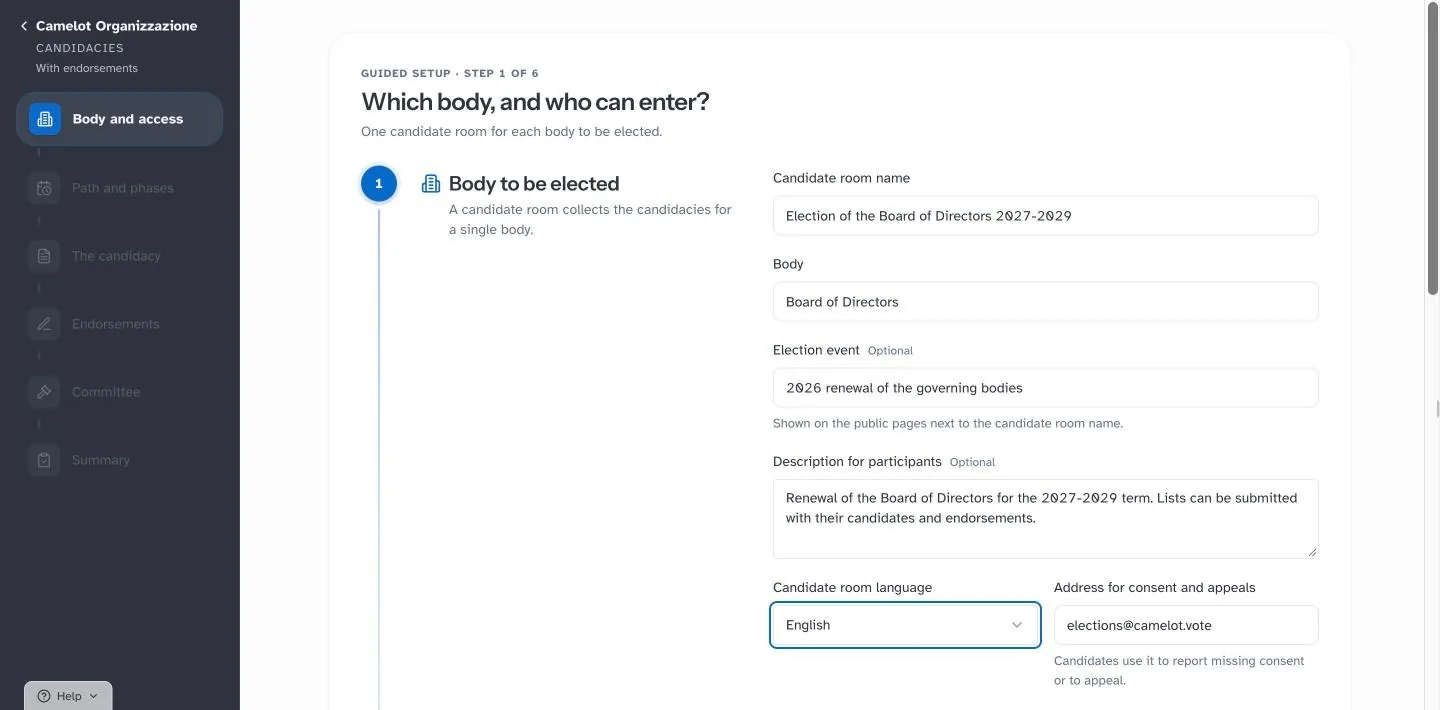
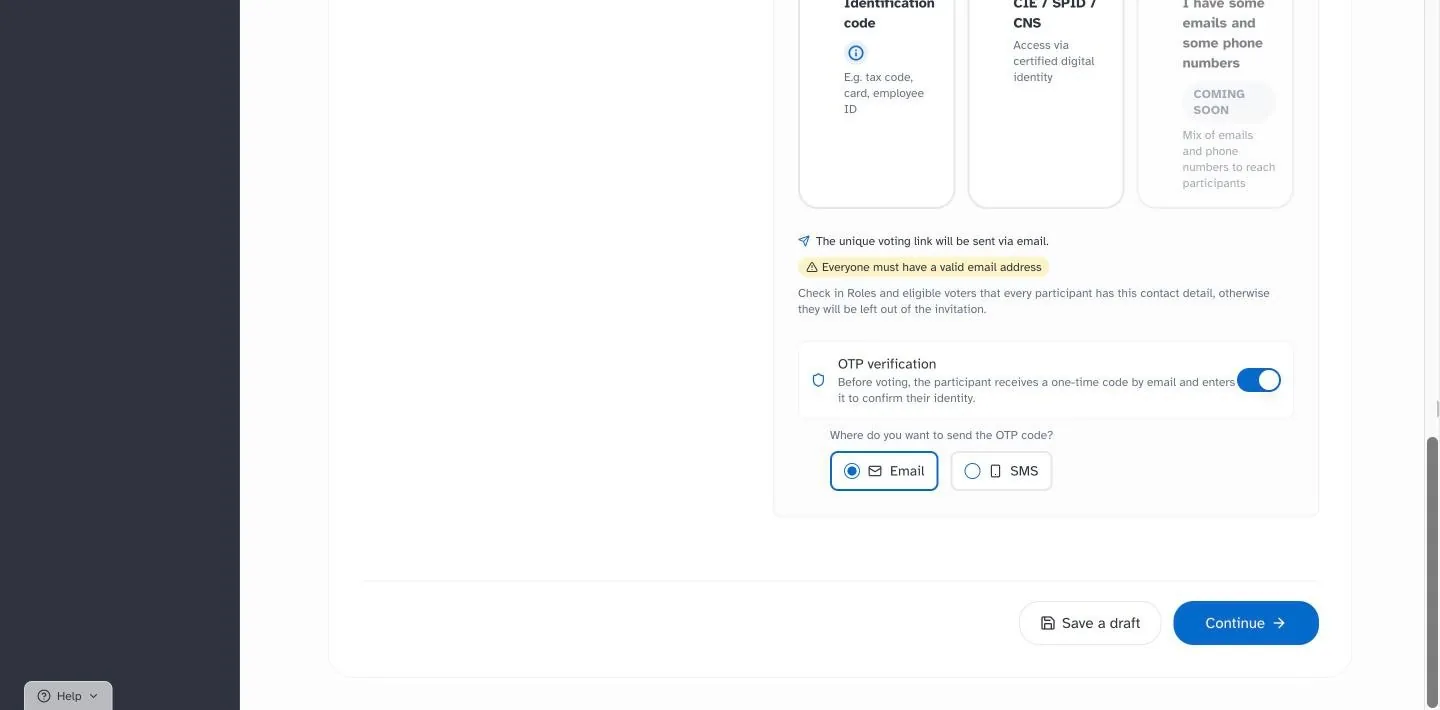
Name of the candidate room, body to be elected, election event and who can enter. Each candidate room collects the candidacies for a single body. The personal link arrives by email, with a confirmation code if verification is turned on.
- 3
Path and phases
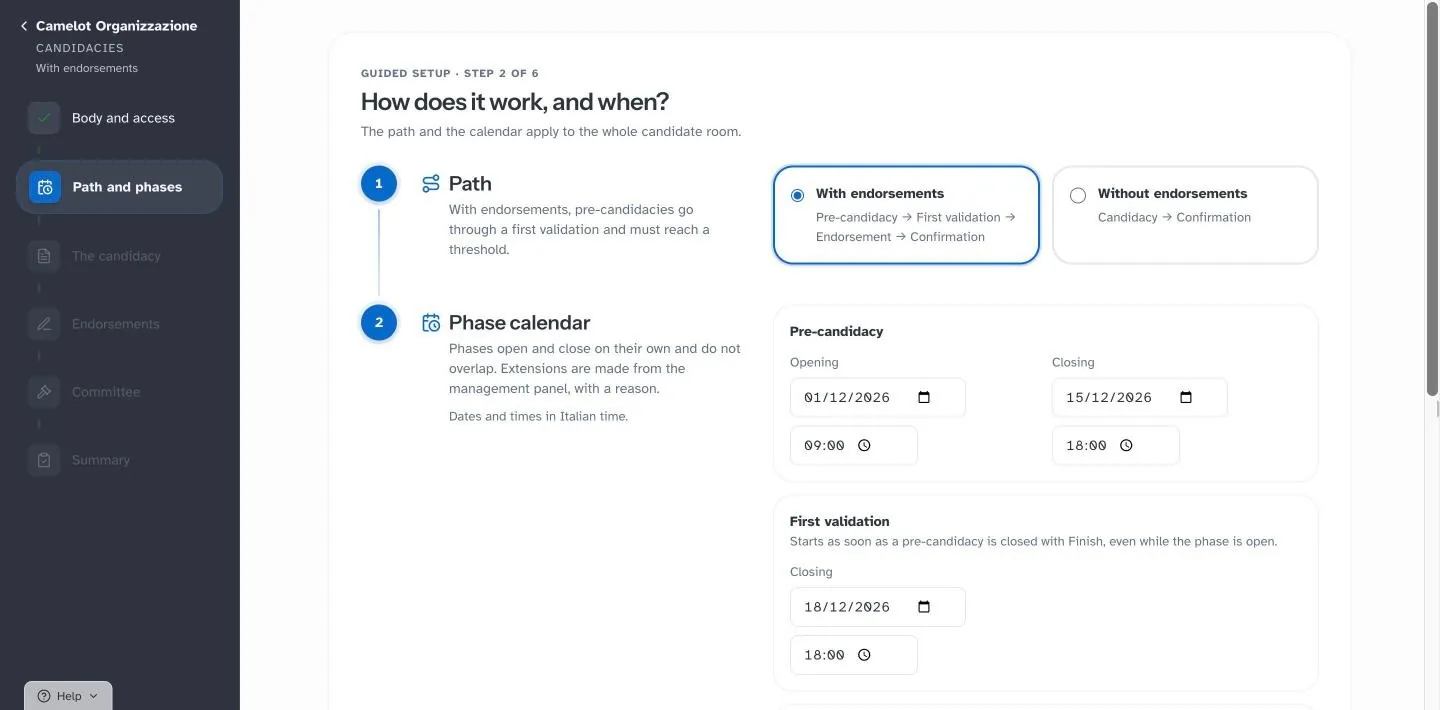
You choose the path, with or without endorsements, and set the date and time of each phase. Phases open and close on their own.
- 4
The candidacy
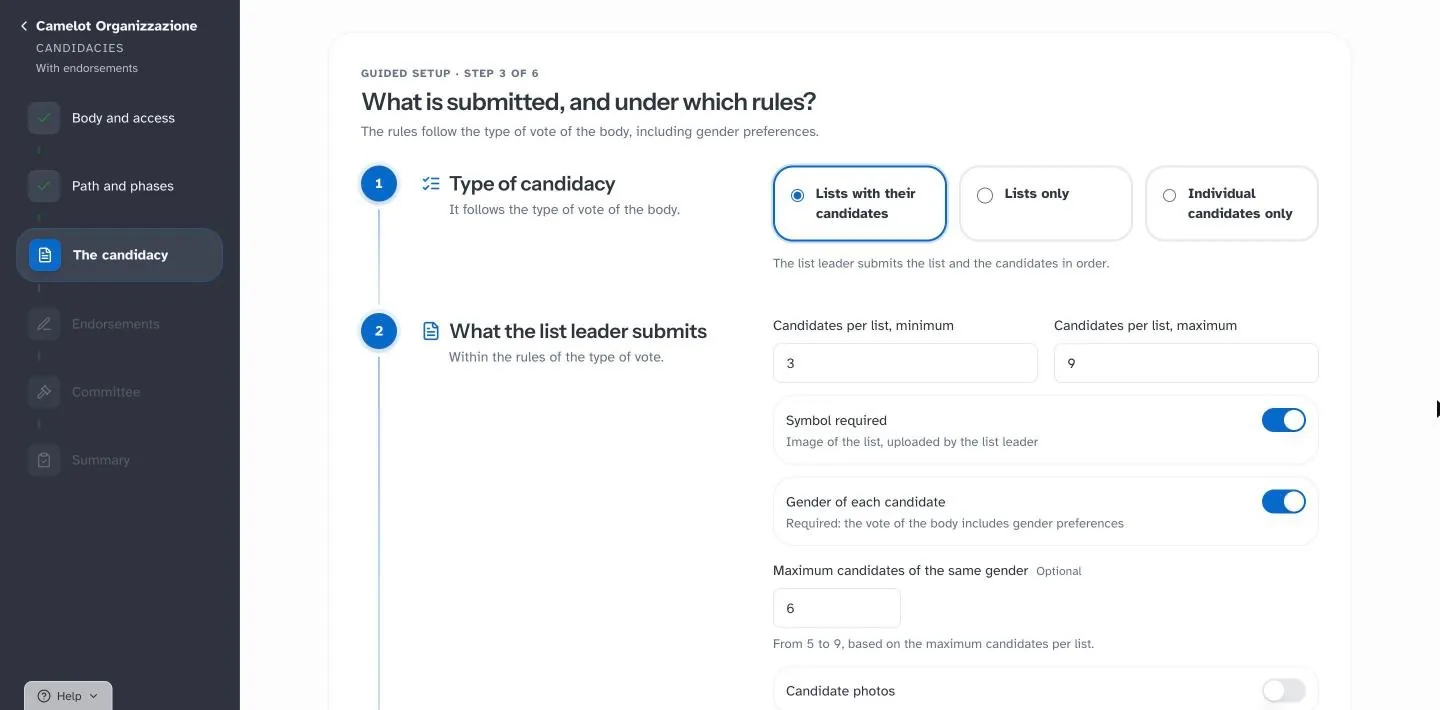
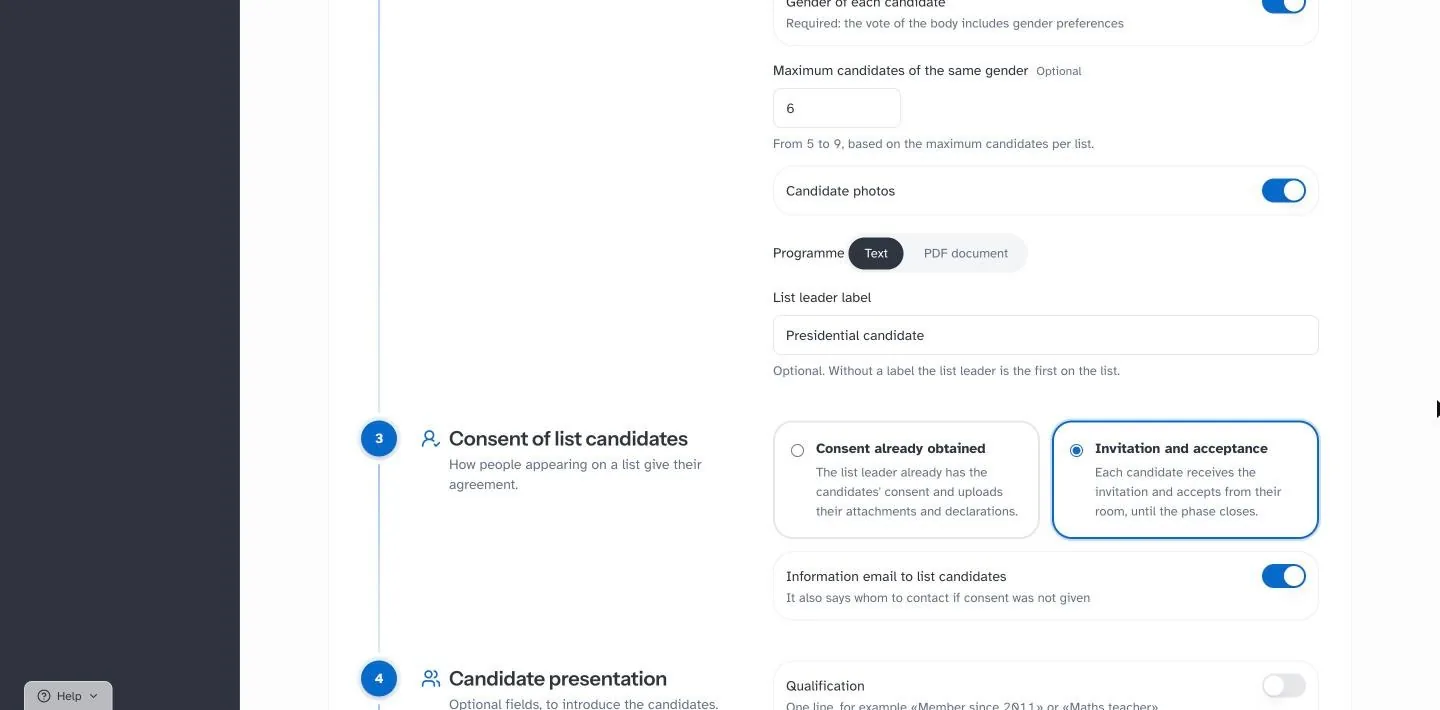
Lists with candidates, lists only or individual candidates only. Minimum and maximum number of candidates, gender quota, symbol, photo, programme, qualification and short presentation.
- 5
Endorsements
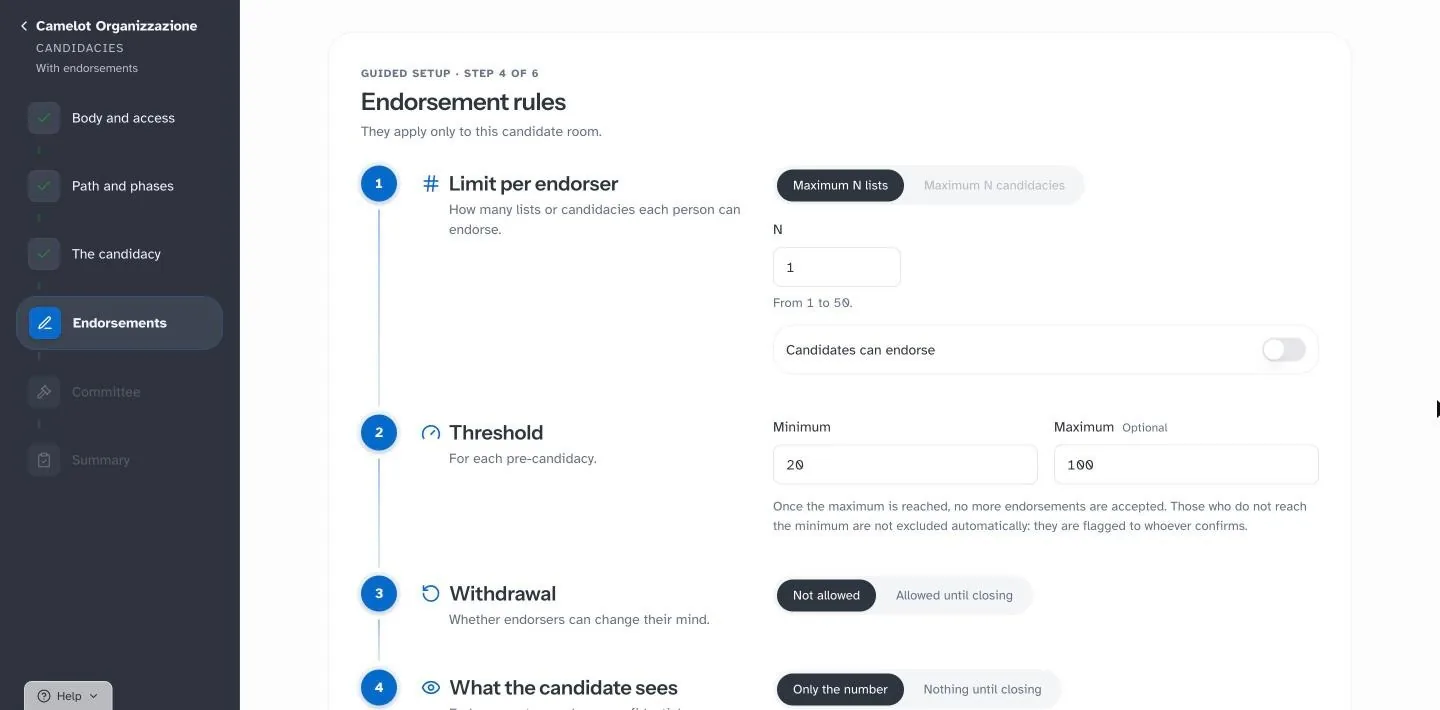
How many lists each person can support, minimum and maximum threshold. The names of endorsers remain confidential.
- 6
Electoral Committee
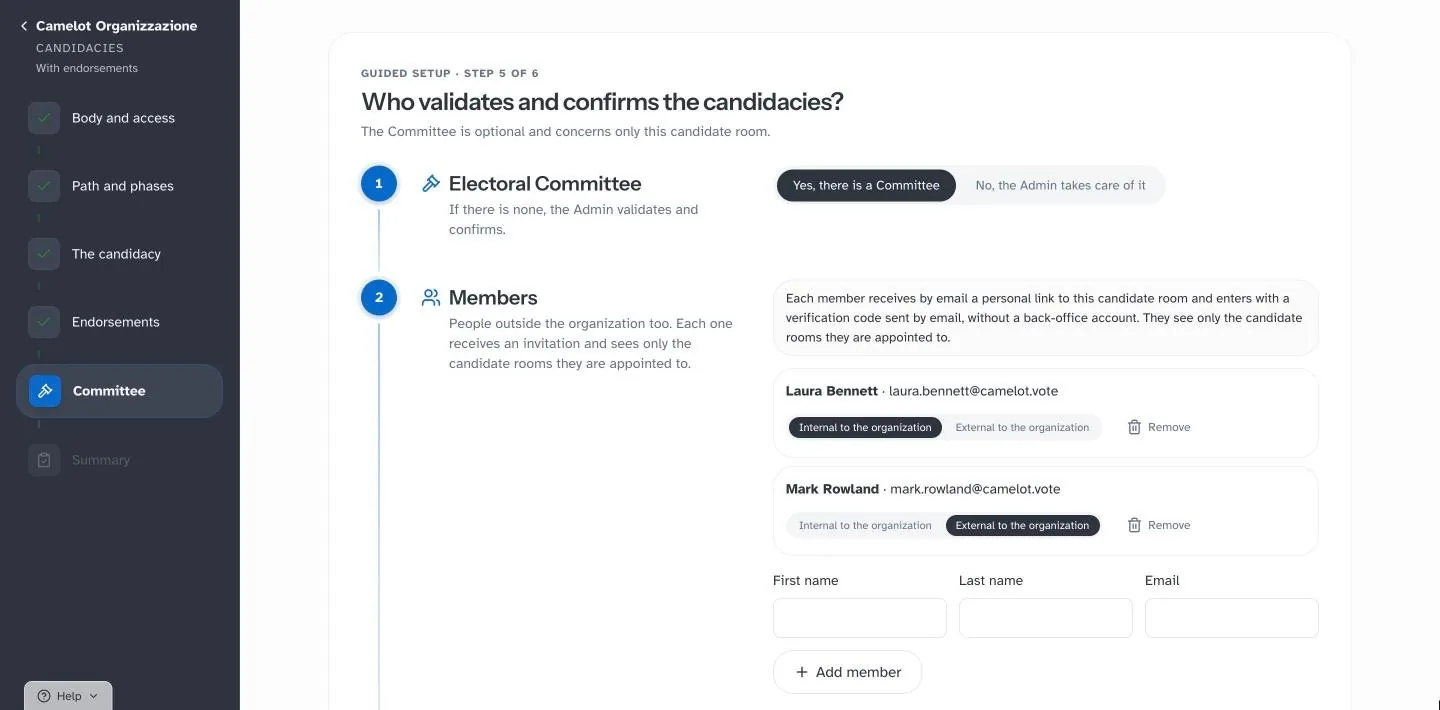
Optional, and it can include members from outside the organization. Each member enters with a link and a code sent by email, without an account. The Committee validates the candidacies, confirms the list and downloads the minutes.
- 7
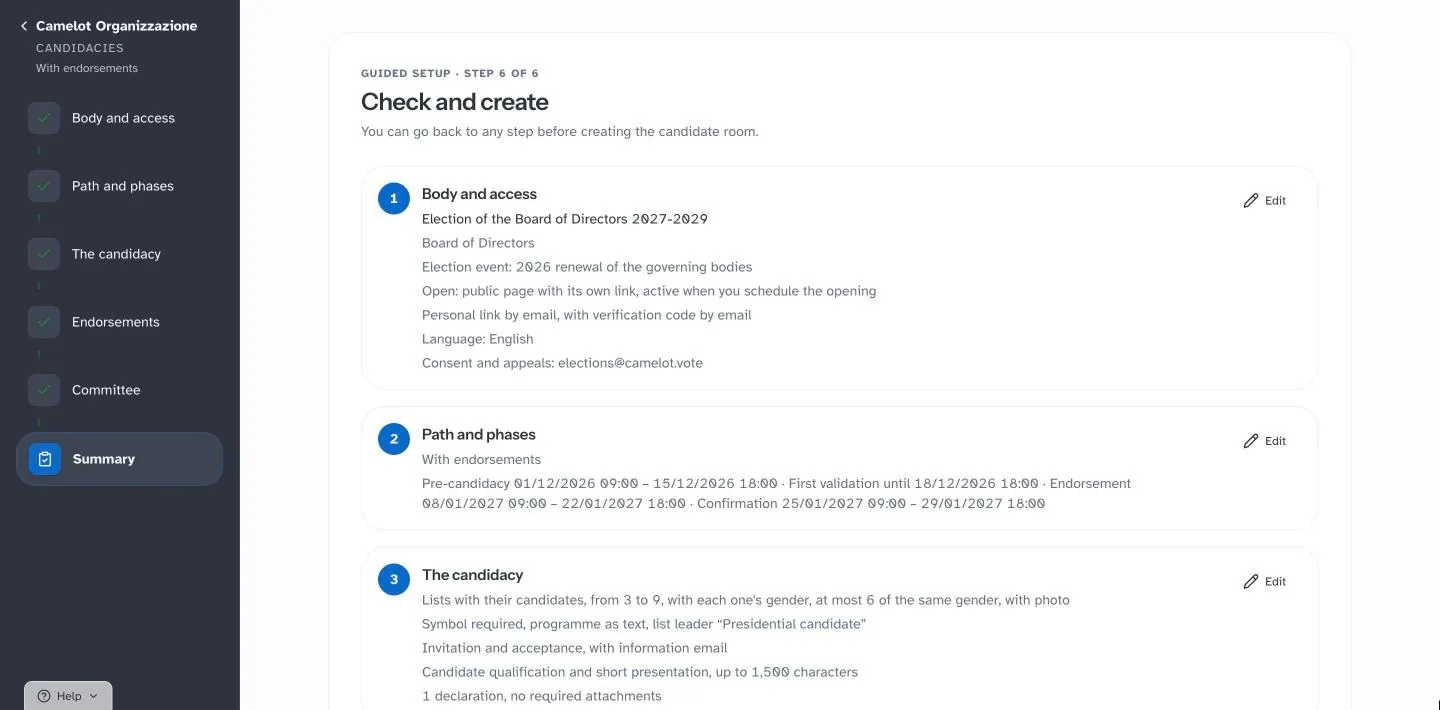
Summary and creation
You decide when candidates see the outcome and create the candidate room.
- 8
Lists
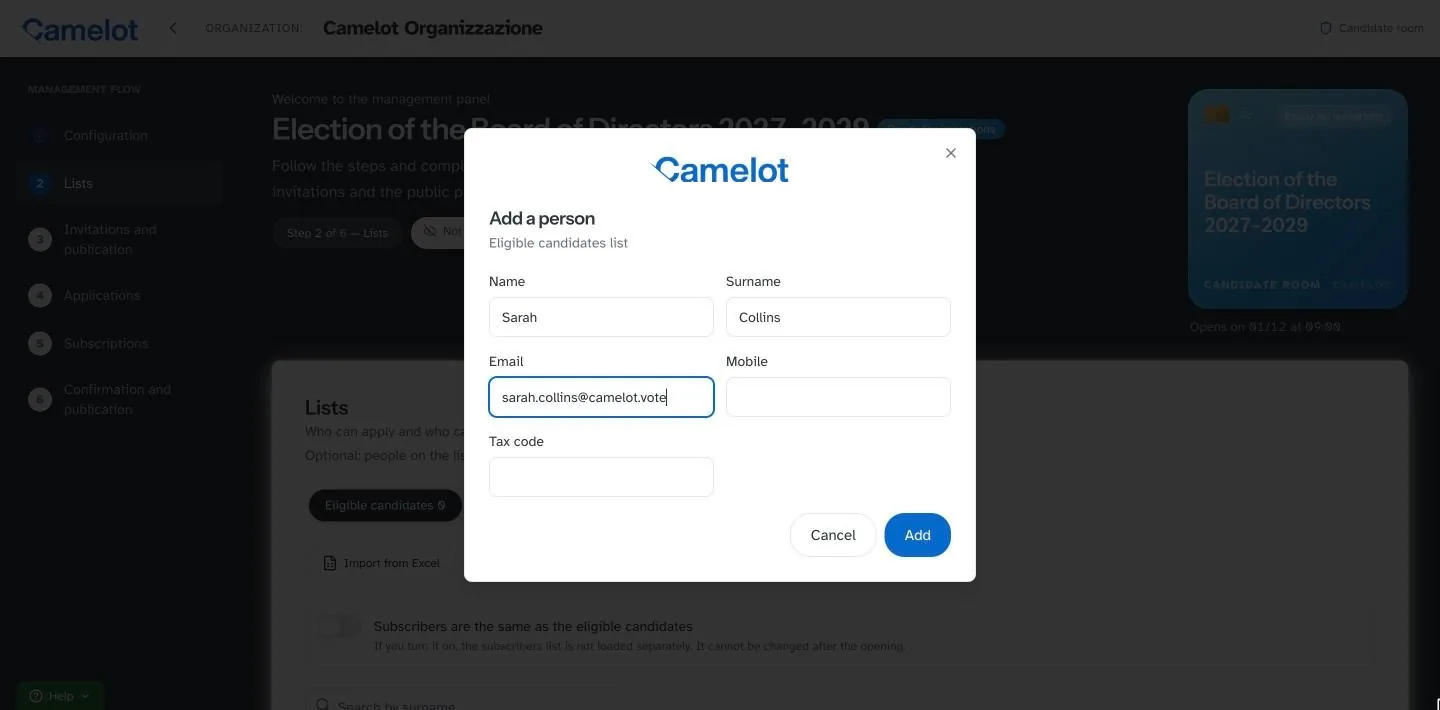
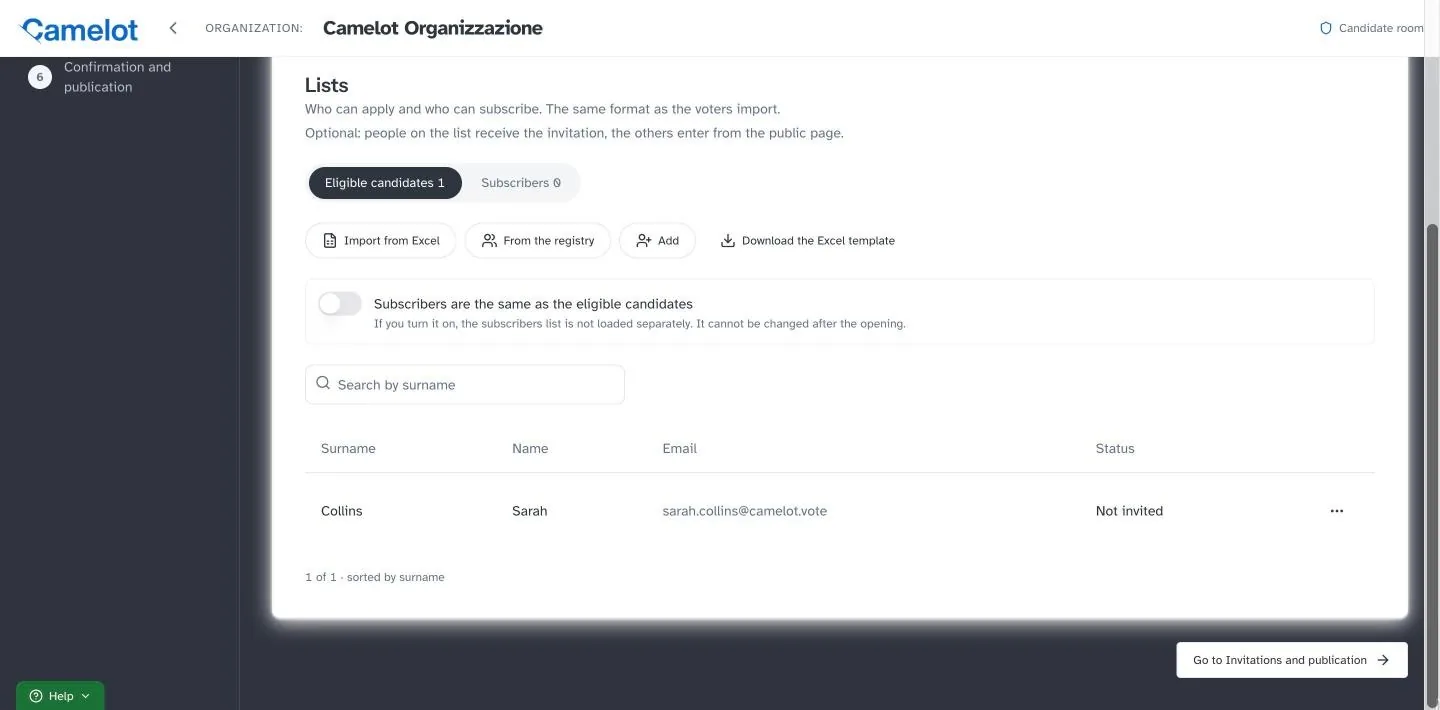
Who can apply and who can endorse, from Excel, from your registry or one person at a time.
- 9
Invitations and publication
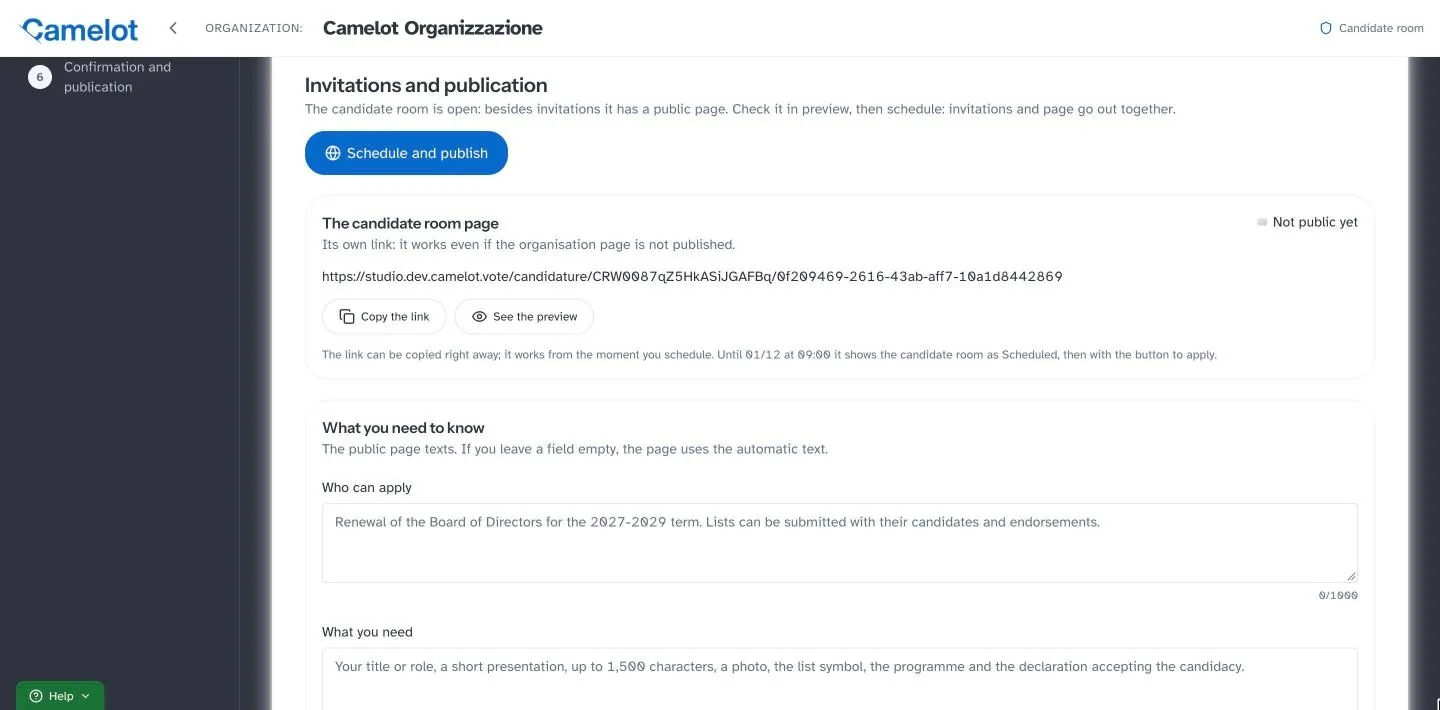
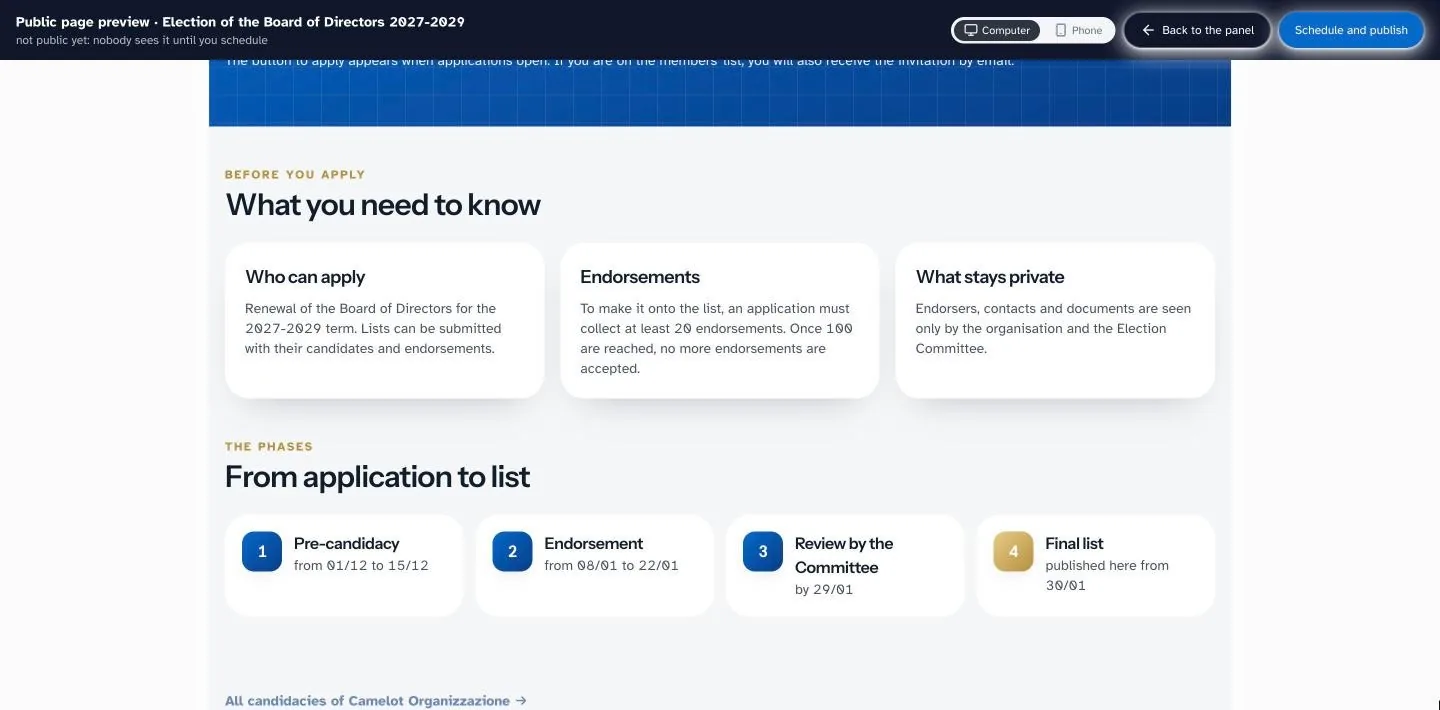
Preview of the public page on a computer and on a phone, then Schedule and publish. Invitations and the page go out together.
- 10
Public page and invitation
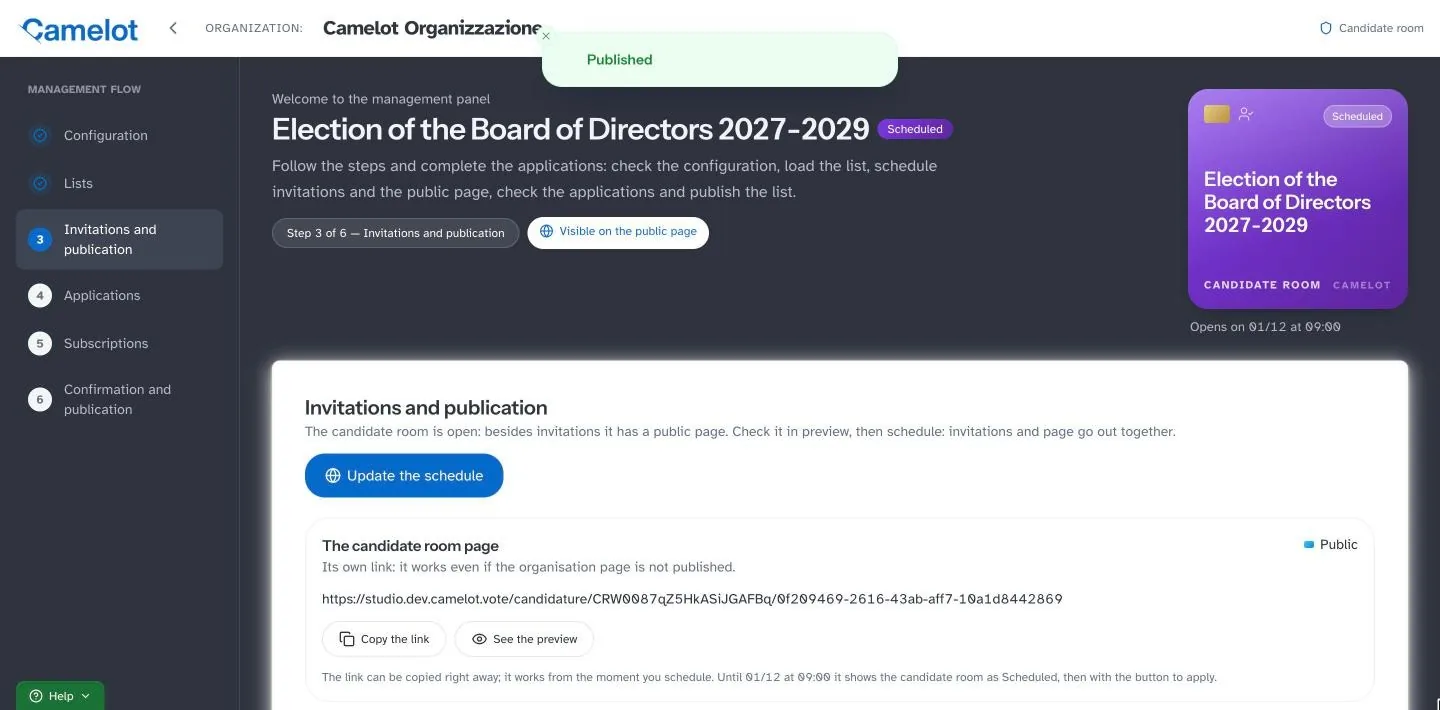
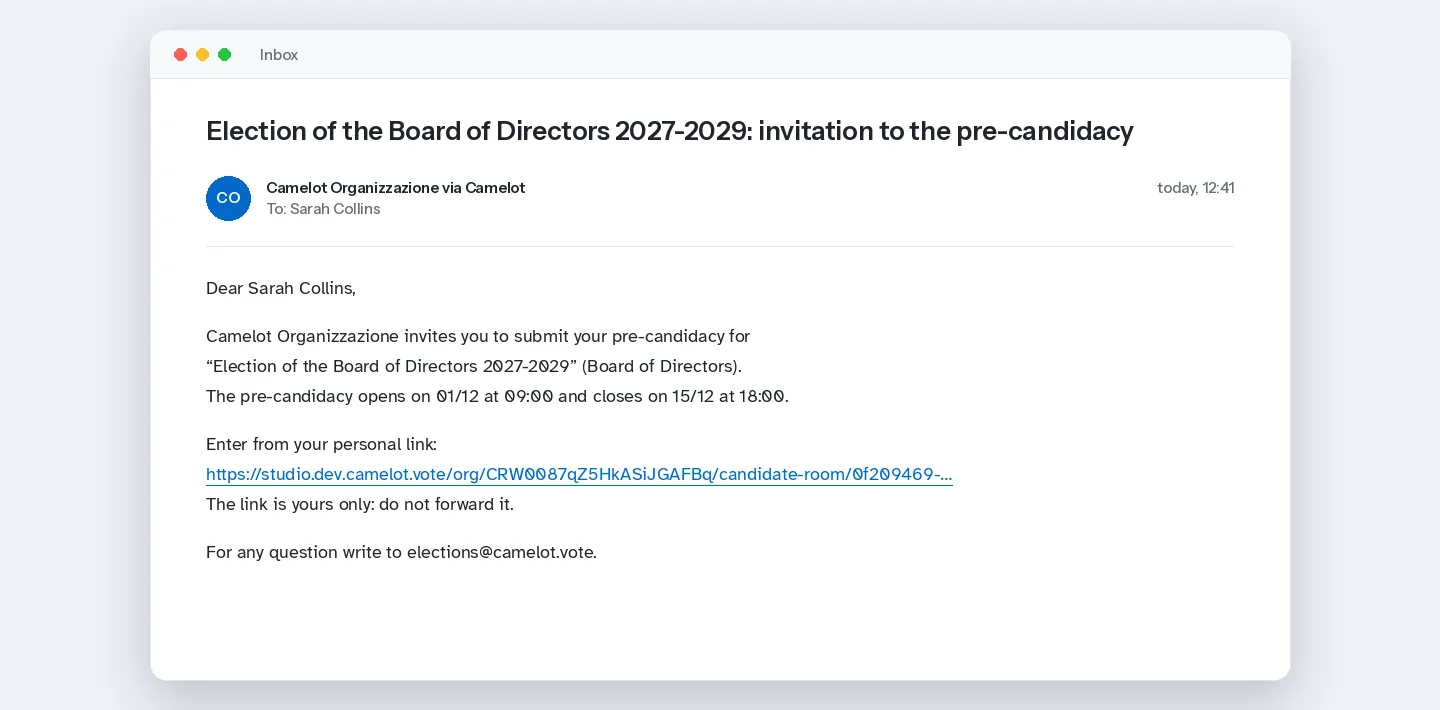
The page is online and the button to apply appears when the first phase opens. Everyone on the list receives the invitation with their personal link.
- 11
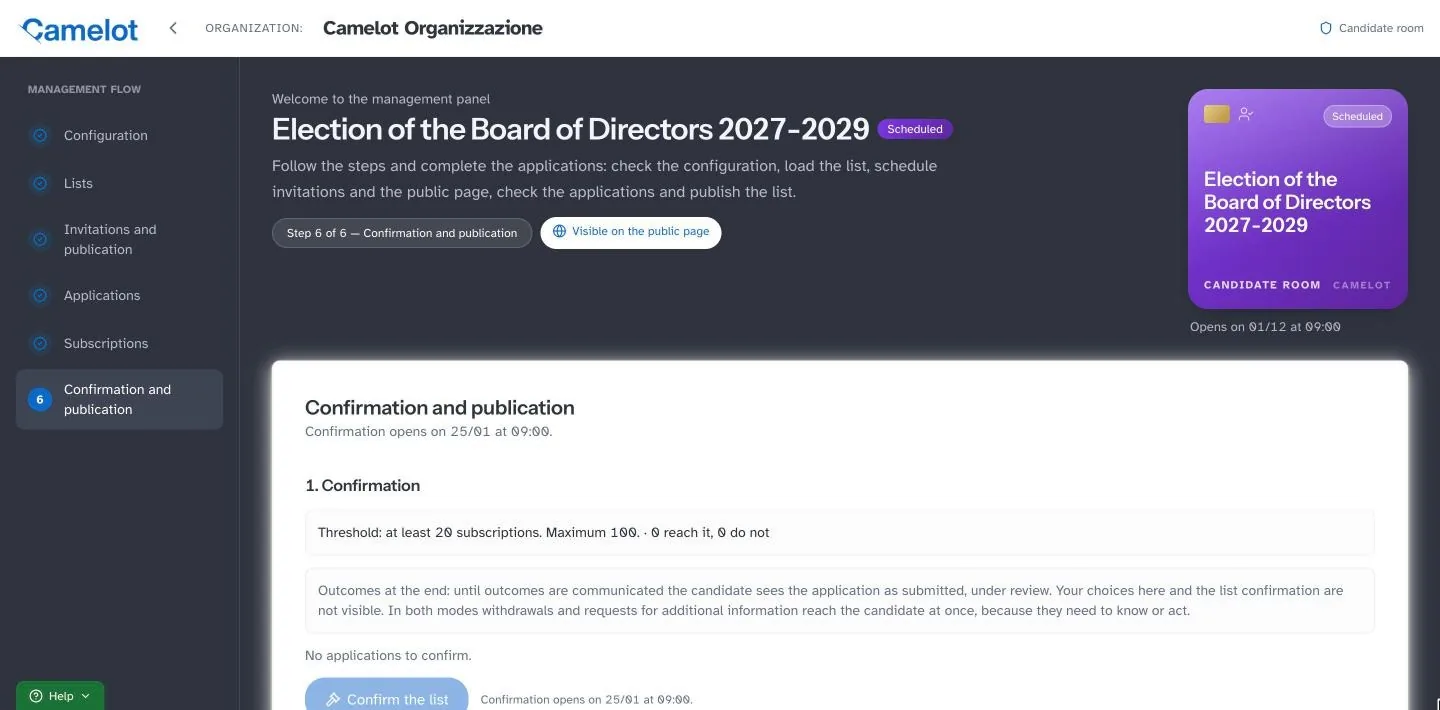
Candidacies and confirmation
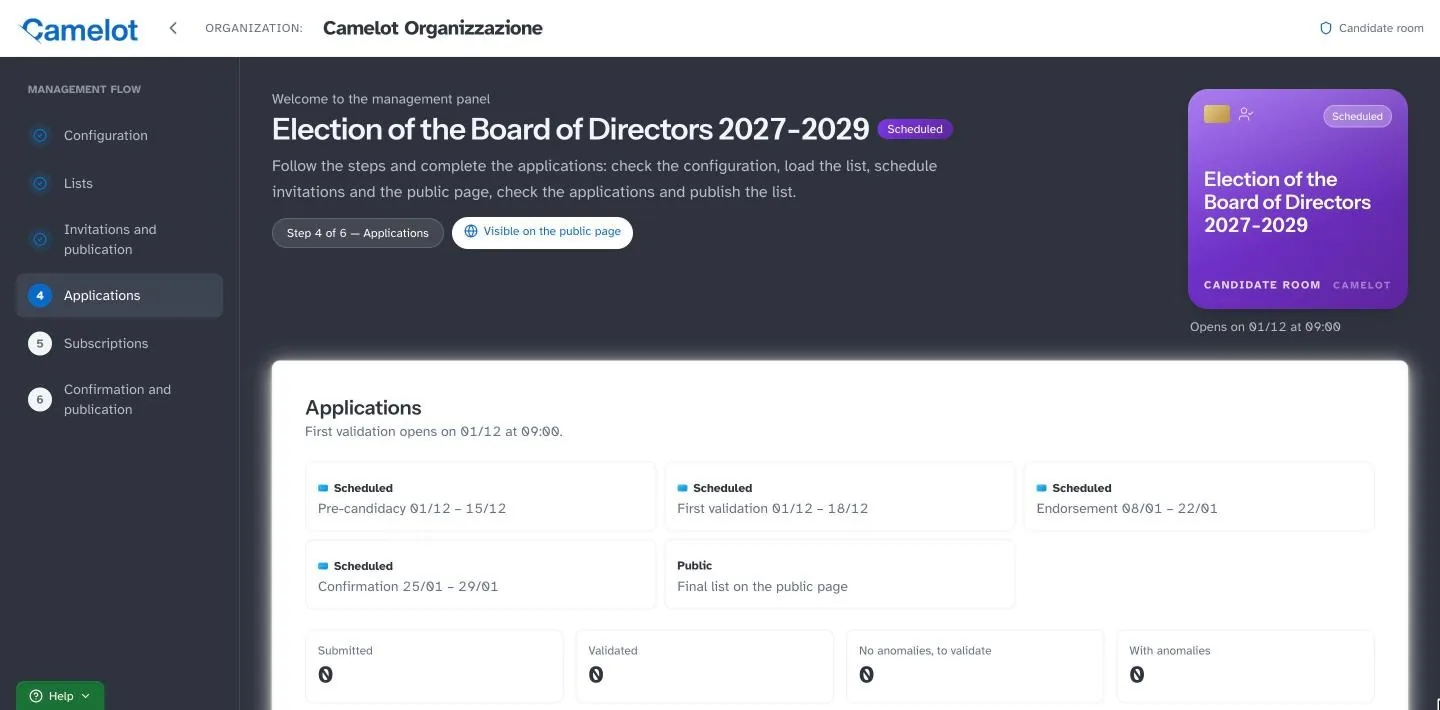
You follow and validate the candidacies, even in bulk, then confirm the list and choose what to publish.
Frequently asked questions
No. They enter with the personal link received by email and a code, or with SPID, CIE or CNS, the Italian digital identity systems, if the licence includes them.
No. If there is none, the organization's administrator validates and confirms.
Only the organization and the Committee. They never appear on the public page.
Yes, with one candidate room per body: each candidate room covers a single body.
After confirmation you download the export and import each list into the vote.
It is available with the licences that include it or on request. Write to us to find out whether it is included in yours.
Video transcript
+
Let's see how to collect candidacies with Camelot.
From your organization's dashboard, scroll down to the card "I want to collect candidacies" and press Create.
The guided setup opens, in six steps. In the first one you enter the name of the candidate room and the body to be elected: each candidate room collects the candidacies for a single body. Add the election event, a short description and the address candidates can write to. Then choose who can enter. With "Open", people can also apply from the public page, not only by invitation. The personal link arrives by email and, if you turn on verification, a confirmation code as well.
Press Continue. In the second step you choose the path with endorsements and set the date and time of each phase: pre-candidacy, first validation, endorsement and confirmation of the list. Phases open and close on their own, without overlapping.
In the third step you decide what is submitted. Here we choose lists with their candidates, from three to nine per list. We make the symbol required, ask for each candidate's gender, with at most six of the same gender, and a photo. The programme is written as text and the list leader has its own label. With invitation and acceptance, each candidate confirms from their own room. Qualification and a short presentation help people get to know the candidates.
In the fourth step you set the rules for endorsements: how many lists each person can support, and the minimum and maximum threshold. The names of endorsers remain confidential.
In the fifth step you appoint the Electoral Committee. Enter the first name, last name and email of each member and press Add. You can also appoint people from outside the organization. Each member enters with a link and a code sent by email, without creating an account. The Committee validates the candidacies, confirms the list and downloads the minutes.
The summary shows all your choices. Decide when candidates see the outcome, then press Create the candidate room.
The candidate room is ready for invitations, and the management panel opens.
In Lists you can upload, if you wish, who can apply and who can endorse: from Excel, from your registry, or one person at a time. Everyone on the list will receive the invitation.
In Invitations and publication you find the link to the public page. Check the preview, on a computer or a phone: this is the page candidates will see, with the rules and the dates of each phase. When everything is ready, press Schedule and publish: invitations and the page go out together.
From this moment the public page is online. The button to apply appears when the first phase opens.
Everyone on the list receives the invitation by email, with their personal link. From the link they enter their own room and submit their candidacy, without creating an account.
Once it opens, follow the candidacies and validate them, even in bulk. At the end you confirm the list and choose what to publish.
Candidacy collection is available with a licence or on request. Find out more at camelot dot vote.
Do you need to renew a governing body?
We show you candidacy collection on your own case and check whether it is included in your licence.