

How to create, run and vote with Camelot inside Google Meet
The full tutorial, from setup in Camelot Studio to the minutes, the report and the projection of the results, from the side of the person running the meeting and of the voter.
Duration 10:29
Video chapters
- 0:00Introduction
- 0:36The home page of your organization
- 1:01Help, instructions and language
- 1:20Roles and eligible voters
- 1:57Registry and groups
- 2:36Creating the vote in Google Meet
- 3:02Topics and templates
- 3:19How invites are sent
- 3:38Voter weight, delegations and voting mode
- 4:20Agenda
- 4:41Results visibility
- 4:56Quorum
- 5:11Features in Google Meet
- 5:37Link to the Meet meeting
- 5:53Summary and creation
- 6:11Who takes part
- 6:30Assembly roles
- 6:53Date, time and invites
- 7:10The invite email
- 7:28Entering the Camelot panel
- 7:49Role of the person running the meeting
- 8:02Attendance and quorum
- 8:18Starting the minutes
- 8:34Discussion, opening the vote and voting
- 9:04Running totals, closing and outcome
- 9:19Messages, documents and new questions
- 9:38Closing the proceedings
- 9:52Results and minutes
- 10:09Report and projection of the results
Frequently asked questions
Do I need to install an app?
+
No. Camelot opens inside Google Meet as an add-on. The first time, you install it from the Google Workspace Marketplace (https://workspace.google.com/marketplace/app/camelot/186306609619), or the administrator of the Google account installs it for everyone.
How are participants identified?
+
Each participant signs in to the Camelot panel with their own Google account, once for the whole meeting. That is why the email in the registry must be the Google account they use to join the meeting.
Can people vote from a phone?
+
Yes. Those who take part from a phone join Meet from the app and vote from the personal link they received by email, with the same ballot.
What do you get at the end?
+
The numbered minutes with the opening and closing of the proceedings, the officers and the attendance, to download as a PDF, the full results report, the data in Excel and the presentation of the results to project or share.
Video transcript
+
In this tutorial we see, step by step, how to set up voting inside a meeting on Google Meet using Camelot. The tutorial has two sections. In the first we see how everything is prepared in Camelot Studio, from the home page of your organization to sending the invites. In the second we see what happens after the invites are sent, that is, what participants receive, how the meeting is run on Google Meet and how people vote, both from the side of the person running the meeting and from the side of the voter, all the way to the minutes, the report and the projection of the results.
Let's start with the first section. You have activated the Camelot license for Google Meet and you sign in to Camelot Studio with your account. The home page of your organization opens. At the top you find the numbers of the votes in progress, scheduled, in draft and completed. In the middle are the cards to create an online vote or the votes of an assembly, and further down the archive of everything you have already done.
At the bottom left of every page there is the Help button. From here you can listen to an explanation of the page, read the instructions, open the frequently asked questions or write to support. At the top right you find the video tutorials and, with the globe icon, the choice of the interface language.
Before creating the vote, it is a good idea to prepare the people. At the top, next to the name of the organization, click Roles and eligible voters. This page has two separate sections.
The first section is Organization roles management. Here you add the colleagues who manage Camelot with you, and you give each of them a role. On the same page you can open the description of what each role can do. Be careful, these are permanent roles of the organization, and they are not the roles of a single assembly, such as President or Secretary. Those are chosen later, among the people who will actually take part in the assembly.
The second section is the Eligible voters registry, that is, the list of the people who can vote. You fill it in once and reuse it in every vote and every assembly. You can add people one at a time with Add participant, or import them all together with the Excel template. For assemblies on Google Meet it is important that each person's email is the Google account they will use to join the meeting, because that is what identifies them.
With Manage groups you can organize people into groups, for example by office, by department or by body. Groups are useful when you need to invite only part of the registry.
Now let's go back to the home page and click Create on the card for votes held during an assembly. Camelot asks where the meeting takes place. You can choose the full assembly inside Camelot, with built-in video, or Camelot inside your video conferencing system. We choose Google Meet. The guided procedure opens, with the steps in the column on the left and, on the right, a preview of how the assembly will look. You can save a draft at any time.
The first step is about the topics. Camelot offers ready-made templates based on the type of organization, which fill in the title and the description for you. If no template fits, choose the last option, Other, and you will write the topics yourself.
Then you choose how to reach the participants. Camelot lets you send the personal link by email or by SMS, or use an identification code, such as a membership or badge number. With Google Meet there is no one-time code, because each person is identified by their own Google account, once for the whole meeting.
In the second step you decide the Voter weight. With All equal, every vote counts as one. With Different weights, you can give each voter a specific weight, for example based on shares.
Then you decide whether to allow Delegations. If you choose Yes, a participant can delegate their vote to another participant, and you can set a limit on the delegations one person can receive, by heads or by weight.
Finally you choose the Voting mode. With All physically present, the voters are together in the room and vote from their own device. With Digital or hybrid assembly, voters connect from anywhere, and those in the room and those connected vote in the same way.
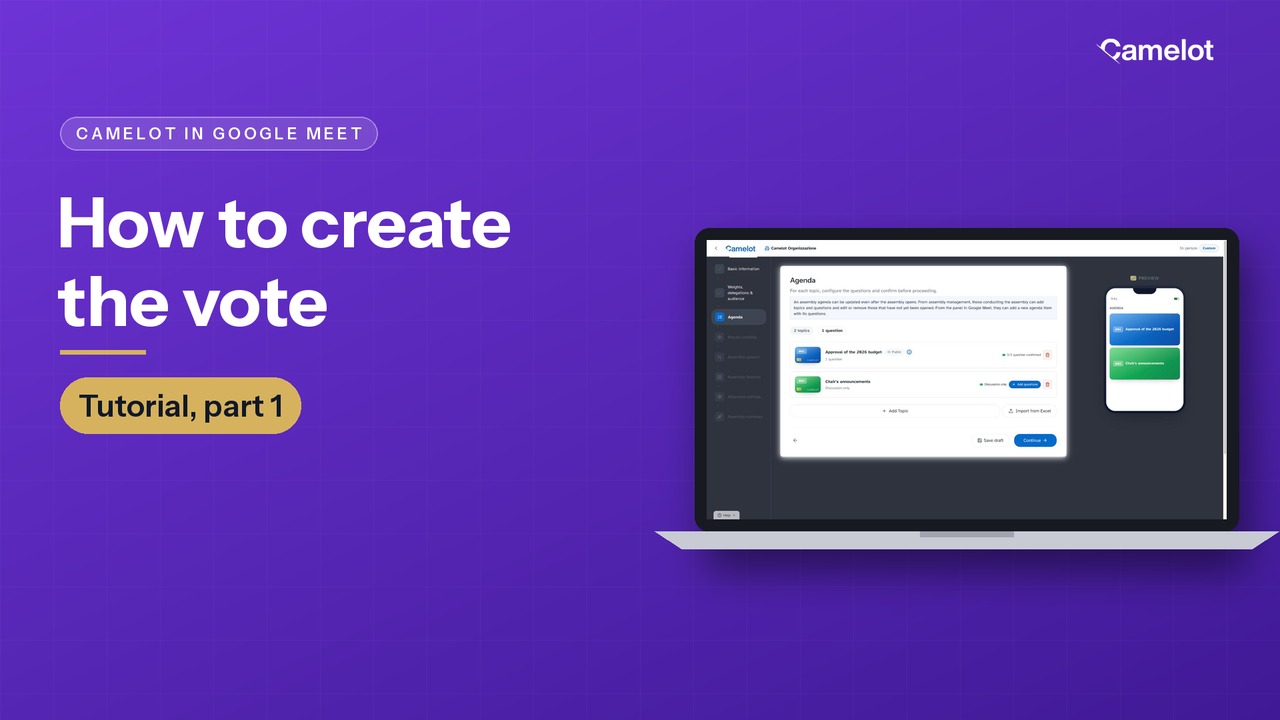
In the third step you build the Agenda. With Add Topic you write the title and choose whether the vote is public, secret or mixed. Then you add the question with its answers, for example in favour and against, and the abstention, which is added automatically. A topic can also be Discussion only, with no vote. The Agenda can be updated during the meeting too.
In the Results visibility step you decide when the person running the meeting sees the results, at the end of each vote or in real time, and when the voters see them. You also choose whether to count votes by heads, by weight or both.
In the Assembly quorum step you can set the minimum percentage of people present for the assembly to be valid, for example fifty percent of the eligible voters. During the meeting the panel will show at every moment whether the quorum is reached.
The Assembly features step is where you choose which tools you want to use during the meeting on Google Meet, inside the Camelot panel. The User guide is always on. You can turn on Formal communications, which participants use to send points of order, statements for the minutes and reports to the person presiding, and Documents, to be consulted during the meeting. On the right, the preview shows how the panel looks inside Meet.
Further down, on the same page, you paste the code or the link of the Google Meet meeting, created with the Google account of the organization. The number of seats in the meeting depends on the Google account, so choose one that suits the length of the meeting and the number of participants.
In the Assembly summary you check the whole configuration, give the assembly a title and click Create assembly. The management panel opens, with its steps in the column on the left, Assembly configuration, Participants, Invites, Results and minutes.
In the Participants section you choose who will take part in this assembly. With Import from registry you have three options. You can load the Whole registry you entered in Roles and eligible voters. If you only need to involve some of the people, you can load One or more groups, or Individual people, chosen one at a time.
Once the participants are set, you assign the roles for this assembly. Click the three dots next to the name, then Edit, and in the Role menu choose President, Secretary or Assistant, each one also in its voting version. Those who have one of these roles will find in the Google Meet panel the commands to open the discussions and the votes. Everyone else remains a Voter.
In the Invites section you set the start date and time, you can customize the text of the email, and you send the invites right away with Send now, or at a set time with Schedule send. Once the invites are sent, let's see what happens on the side of the voters and of the person running the meeting.
Each participant receives an email with the name of the organization, the title of the assembly, the date and time, and the button to join. The email is the same for everyone. Each person's role, President, Secretary, Assistant or Voter, appears when they enter the Camelot panel.
At the scheduled time, everyone joins the meeting on Google Meet. At the bottom right you open Meeting tools, then Add-ons, and choose Camelot. The first time, you install it from the Marketplace, or the administrator of the Google account installs it for everyone. In the panel you click Continue with Google and you stay identified for the whole meeting.
The person running the meeting sees their role at the top. Clicking it opens the list of what they can do, that is, open and close the discussions and the votes, add topics and questions and, if they have a voting role, vote.
Below the title there is the number of people present out of the total of eligible voters and, next to it, the status of the quorum. If the quorum is not reached, you see it here and in the box below, and with See the numbers you find the details of who is present and who is absent.
With Start the minutes the business of the assembly officially opens, and from that moment attendance and votes are recorded. If the quorum is not reached, Camelot points it out, but the decision to start remains with the person presiding and is recorded in the minutes.
On the first item of the Agenda, the person running the meeting clicks Start discussion. When it is time to vote, in the Agenda tab, they click Open vote.
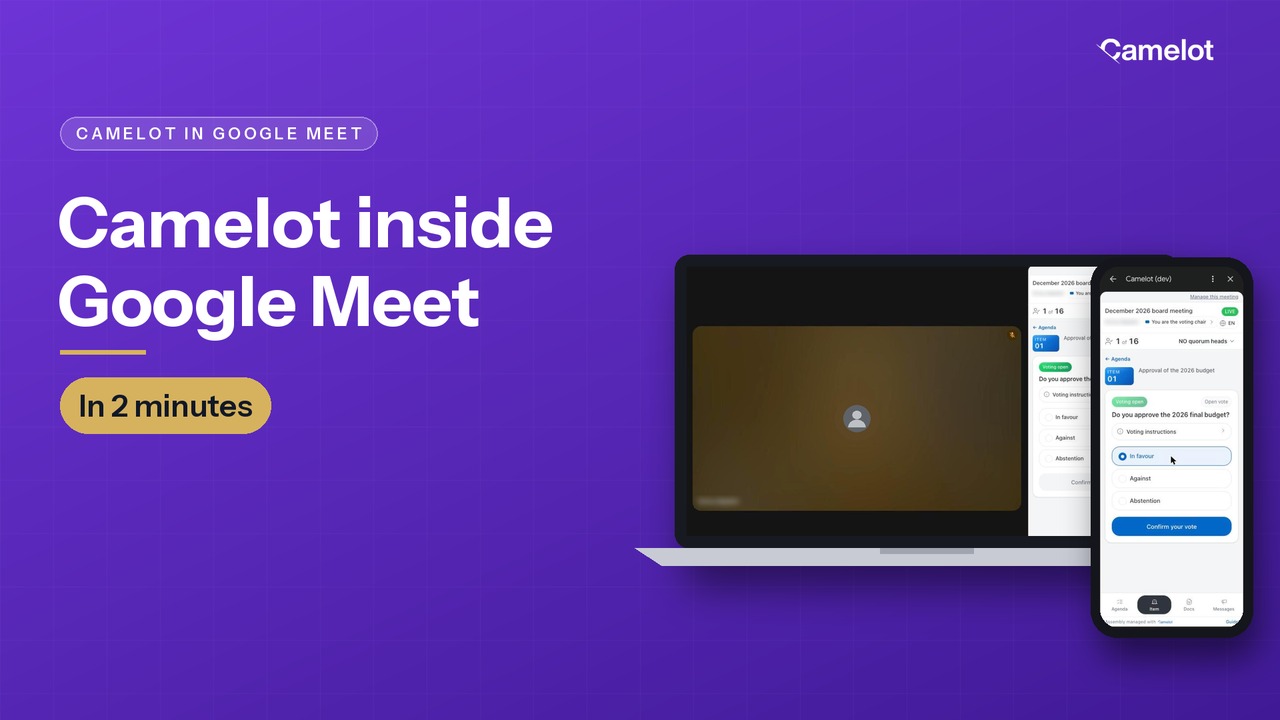
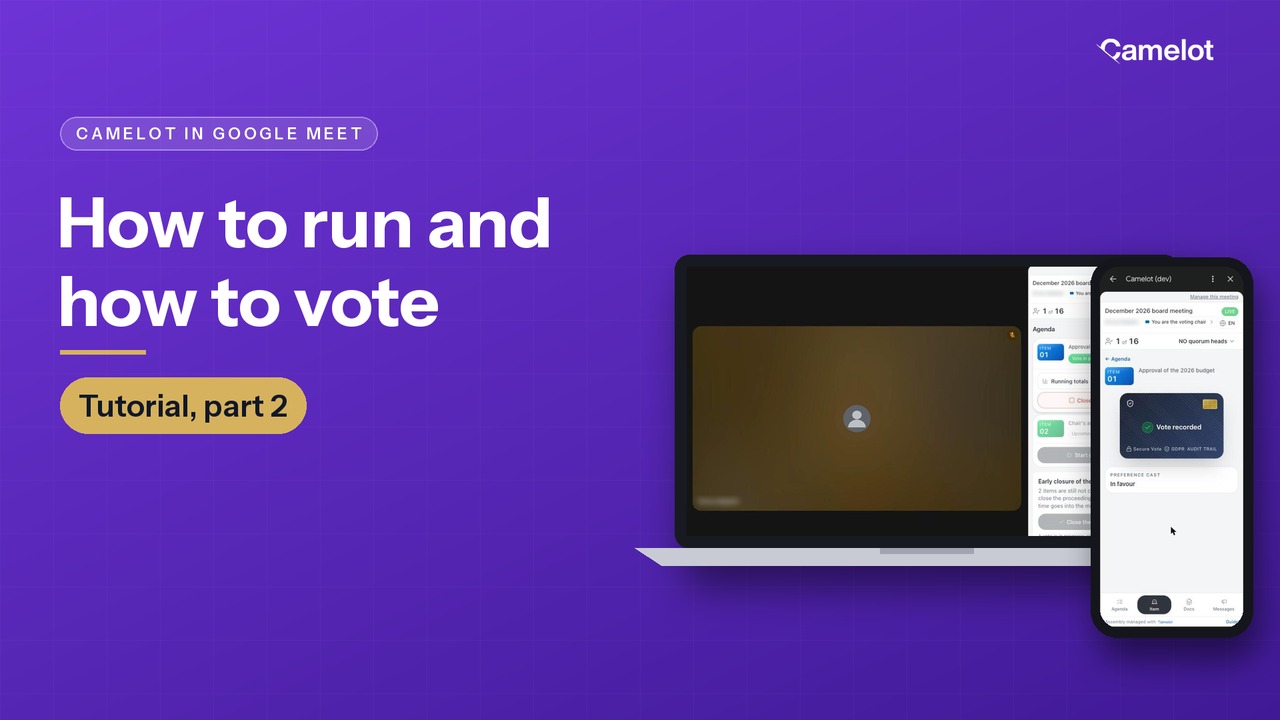
Voters see the question in the panel. Below the question, under Voting instructions, they find how to vote. They choose their answer, click Confirm your vote, and the receipt confirms that the vote is recorded. Those who take part from a phone join Meet from the app and vote from the personal link they received by email, with the same ballot.
During the vote, the person running the meeting sees how many people have voted and, by opening Running totals, how each answer is doing. With Close the vote the vote is closed, votes not yet cast are no longer accepted, and the outcome appears in the panel.
During the meeting, in the Messages tab, the person running the meeting finds the formal communications from participants, recorded with date and time, and in the Docs tab there are the documents. If needed, with New question in the Agenda tab, a question can be added while the meeting is in progress.
When the items have been dealt with, the person running the meeting clicks Close the proceedings. The assembly is declared closed and the minutes are finalized, while the meeting on Google Meet stays open until the host or the participants end it.
The person who created the vote finds everything in Camelot Studio, in the Results and minutes section. There are the turnout, the outcome of each question and the numbered minutes, with the opening and closing of the proceedings, the officers and the attendance, to download as a PDF.
Further down, with Full results report you download the report, with Detail Excel you download all the data, and with Project Results you open the presentation of the results, to show to the participants or to share. The completed assembly stays in the archive of the organization.
Is your meeting already on Google Meet?
We will show you Camelot inside Google Meet on your case, with the rules of your organization.