

How to run the meeting and vote inside Google Meet
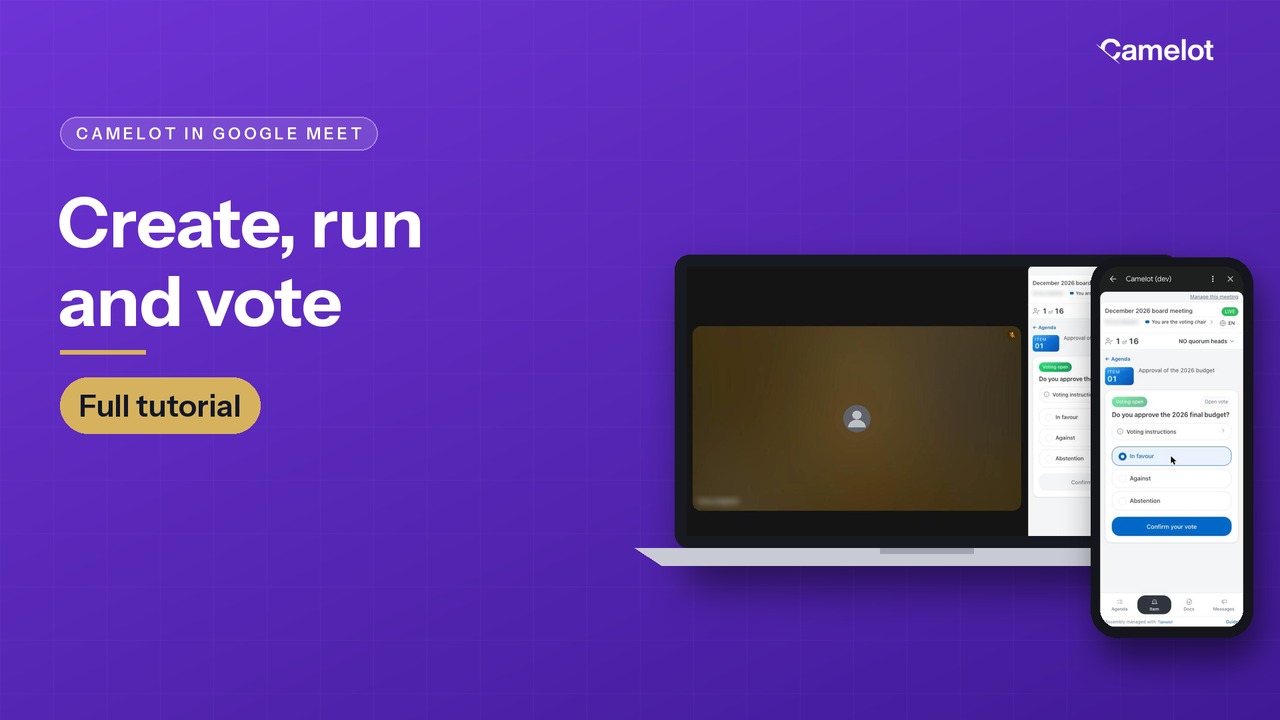
How the meeting is run and how people vote in the Camelot panel inside Google Meet, up to the minutes, the report and the projection of the results.
Duration 3:23
Video chapters
- 0:00The invite email
- 0:22Entering the Camelot panel
- 0:42Role of the person running the meeting
- 0:56Attendance and quorum
- 1:12Starting the minutes
- 1:28Discussion, opening the vote and voting
- 1:57Running totals, closing and outcome
- 2:13Messages, documents and new questions
- 2:31Closing the proceedings
- 2:45Results and minutes
- 3:03Report and projection of the results
Frequently asked questions
Do I need to install an app?
+
No. Camelot opens inside Google Meet as an add-on. The first time, you install it from the Google Workspace Marketplace (https://workspace.google.com/marketplace/app/camelot/186306609619), or the administrator of the Google account installs it for everyone.
How are participants identified?
+
Each participant signs in to the Camelot panel with their own Google account, once for the whole meeting. That is why the email in the registry must be the Google account they use to join the meeting.
Can people vote from a phone?
+
Yes. Those who take part from a phone join Meet from the app and vote from the personal link they received by email, with the same ballot.
What do you get at the end?
+
The numbered minutes with the opening and closing of the proceedings, the officers and the attendance, to download as a PDF, the full results report, the data in Excel and the presentation of the results to project or share.
Video transcript
+
Each participant receives an email with the name of the organization, the title of the assembly, the date and time, and the button to join. The email is the same for everyone. Each person's role, President, Secretary, Assistant or Voter, appears when they enter the Camelot panel.
At the scheduled time, everyone joins the meeting on Google Meet. At the bottom right you open Meeting tools, then Add-ons, and choose Camelot. The first time, you install it from the Marketplace, or the administrator of the Google account installs it for everyone. In the panel you click Continue with Google and you stay identified for the whole meeting.
The person running the meeting sees their role at the top. Clicking it opens the list of what they can do, that is, open and close the discussions and the votes, add topics and questions and, if they have a voting role, vote.
Below the title there is the number of people present out of the total of eligible voters and, next to it, the status of the quorum. If the quorum is not reached, you see it here and in the box below, and with See the numbers you find the details of who is present and who is absent.
With Start the minutes the business of the assembly officially opens, and from that moment attendance and votes are recorded. If the quorum is not reached, Camelot points it out, but the decision to start remains with the person presiding and is recorded in the minutes.
On the first item of the Agenda, the person running the meeting clicks Start discussion. When it is time to vote, in the Agenda tab, they click Open vote.
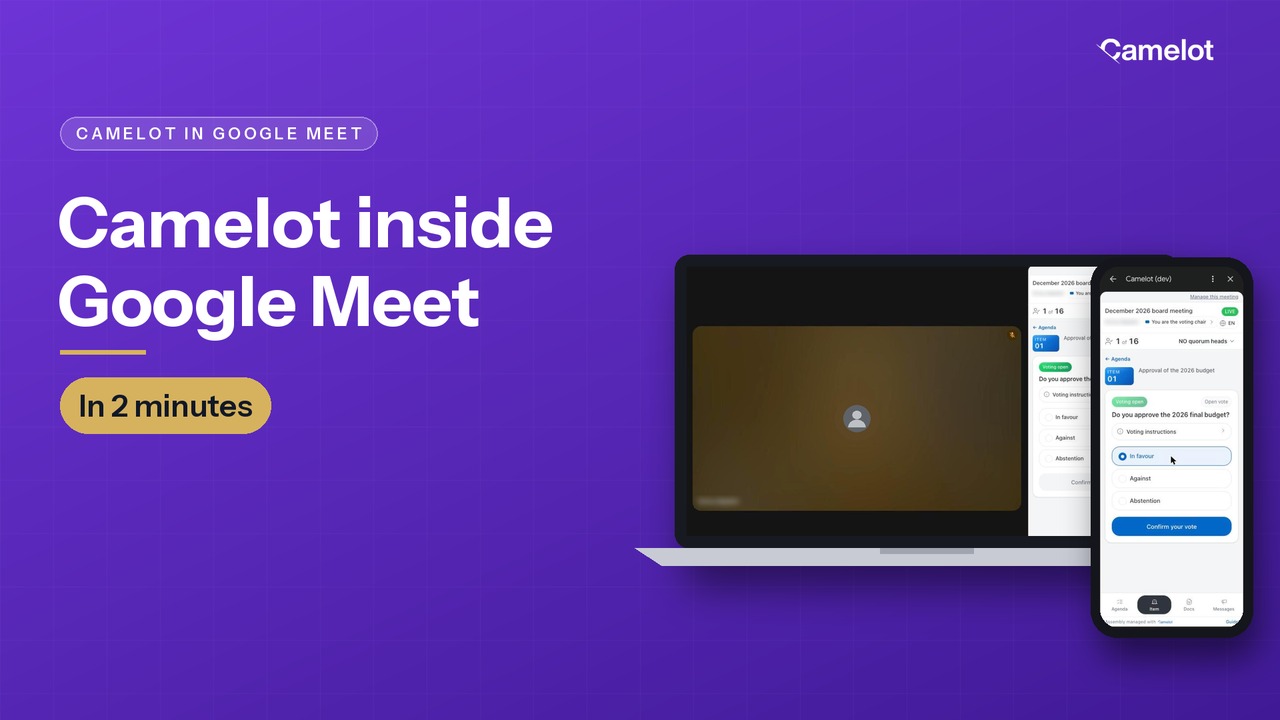
Voters see the question in the panel. Below the question, under Voting instructions, they find how to vote. They choose their answer, click Confirm your vote, and the receipt confirms that the vote is recorded. Those who take part from a phone join Meet from the app and vote from the personal link they received by email, with the same ballot.
During the vote, the person running the meeting sees how many people have voted and, by opening Running totals, how each answer is doing. With Close the vote the vote is closed, votes not yet cast are no longer accepted, and the outcome appears in the panel.
During the meeting, in the Messages tab, the person running the meeting finds the formal communications from participants, recorded with date and time, and in the Docs tab there are the documents. If needed, with New question in the Agenda tab, a question can be added while the meeting is in progress.
When the items have been dealt with, the person running the meeting clicks Close the proceedings. The assembly is declared closed and the minutes are finalized, while the meeting on Google Meet stays open until the host or the participants end it.
The person who created the vote finds everything in Camelot Studio, in the Results and minutes section. There are the turnout, the outcome of each question and the numbered minutes, with the opening and closing of the proceedings, the officers and the attendance, to download as a PDF.
Further down, with Full results report you download the report, with Detail Excel you download all the data, and with Project Results you open the presentation of the results, to show to the participants or to share. The completed assembly stays in the archive of the organization.
Is your meeting already on Google Meet?
We will show you Camelot inside Google Meet on your case, with the rules of your organization.